
This guide will walk you through the step-by-step process to switch from your current plan to a paid subscription and complete the payment.
1
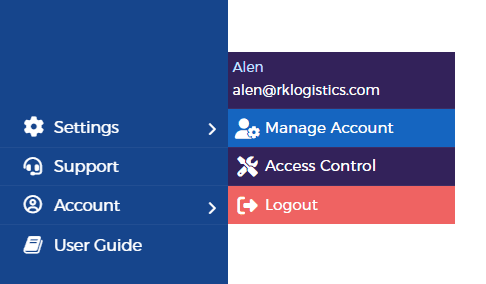
Go to Account Settings
- Open the side panel
- Click on “Account”
- Select “Manage Account”
2
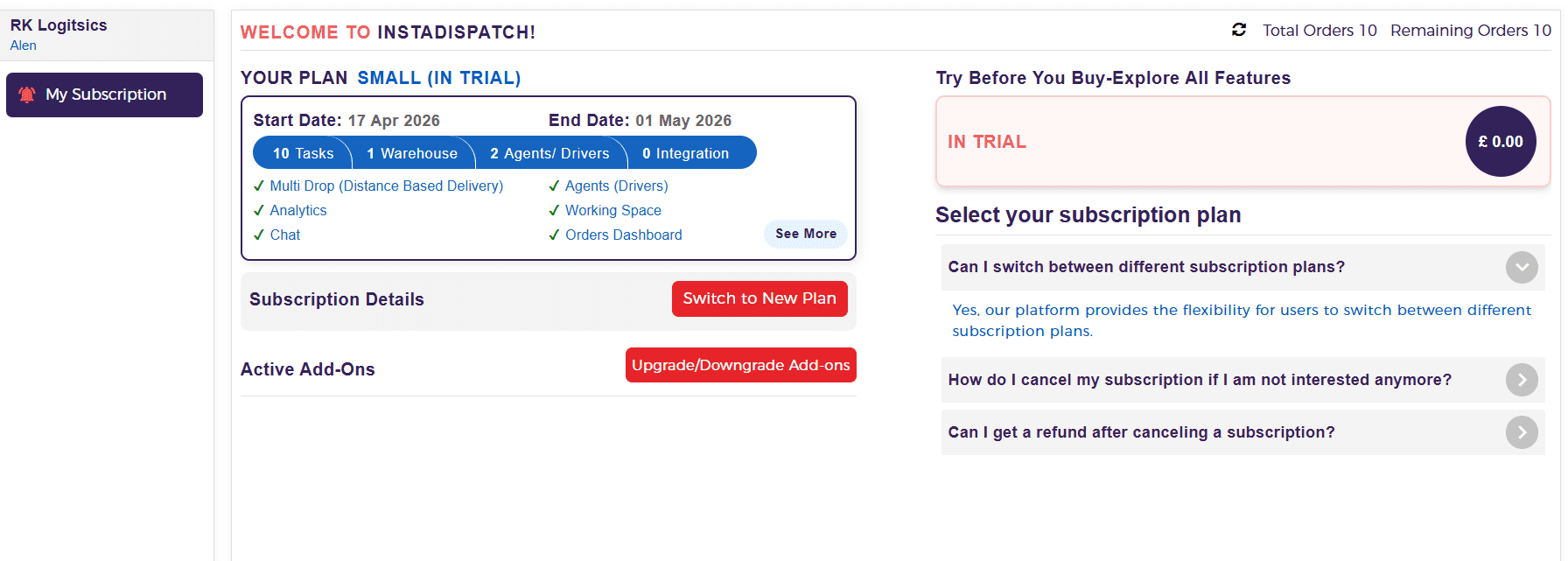
Switch to a New Plan
- Click on “Switch to New Plan”
- All available plans will appear on the right side of the screen
3
Select Your Plan
- Choose the plan that best suits your business needs
- Click “Next”
4
Add Add-ons (Optional)
- On the next screen, you will have the option to add add-ons based on your requirements
- If you choose any add-ons, click “Confirm”
- After confirming, click on “Breakdown” to view the total cost (subscription fee + add-ons)
5
Add Payment Method
- Click on “Add Payment Method”
- Enter your card details
- Click “Save Card”
6
Complete the Payment
- Once your card is saved, the “Pay Now” button will appear
- Click “Pay Now” to proceed
- The payment will be processed and your plan will be activated instantly upon success
7
Confirmation & Billing
- You will receive a payment confirmation and subscription activation email on your registered email address
- The subscription will be automatically renewed every month
- The billing date will remain the same as your initial payment date
This process ensures a seamless upgrade experience and uninterrupted access to paid features.
