
A proforma invoice is a feature that allows users to generate a preliminary invoice before sending the final invoice to customers.
It helps review shipment charges, validate billing data, and share estimated invoices with customers in advance.
When to Use Proforma Invoice
Use a proforma invoice when:
- You want to preview invoice details before final billing
- You need to share estimated charges with customers
- You want to generate invoices based on shipment dates and for particular customers.
How to Access
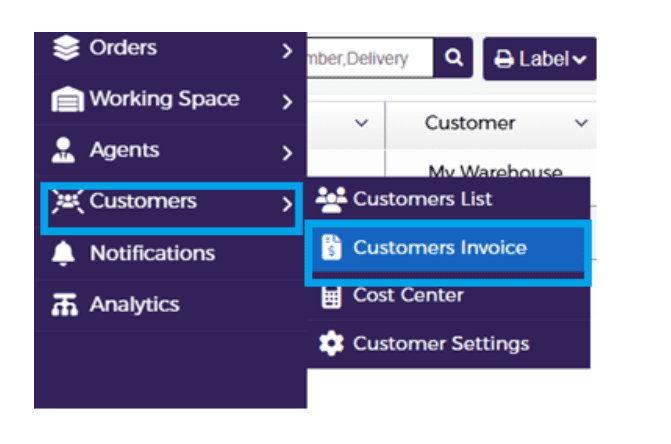
- Go to Customers
- Select Customers Invoice
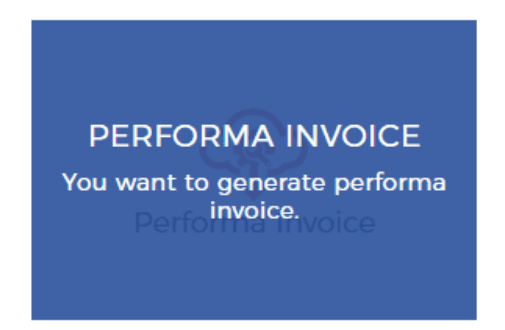
- Choose Proforma Invoice
Note
This option is available only if the Invoice module is enabled in your account
Key Features
- Generate invoices based on:
- Booking Date
- Pickup Date
- Send invoice directly to:
- Customer billing email
- Additional email (optional)
- Download invoice in
- PDF format
- Excel format
Step-by-Step Process
1
Open Proforma Invoice
- Navigate to Customers → Invoice
- Select Proforma Invoice
2
Select Invoice Type
Choose how you want to generate the invoice:
- By Booking Date
- By Pickup Date
This determines which shipments are included in the invoice.
3
Set Criteria
- Select the date range
- Choose customer(s) (if applicable)
4
Generate Proforma Invoice
- Click Create Proforma
- The system will:
- Fetch shipments based on selected criteria
- Generate invoice data

5
Review Invoice Data
- Generated shipments will appear in the grid
- Verify:
- Shipment details
- Charges
- Totals
6
Download or Send Invoice
You can:
- Send PDF → Proforma Invoice document
- Download Excel → Detailed invoice data
- Send Email → Sent to customer billing email
- Send to Another Email → Enter custom email and send

Additional Options
Attach Adjustments
- Includes price changes for already invoiced shipments
- Covers:
- Price increases (debit)
- Price decreases (credit)

Include Uninvoiced Shipments
- Adds shipments that were not invoiced previously

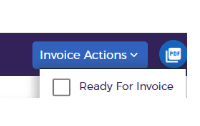
Ready for Invoice Filter
- Includes only shipments marked as:
“Ready for Invoice”

- This status is set from:
- Shipment → Invoice Actions
Output
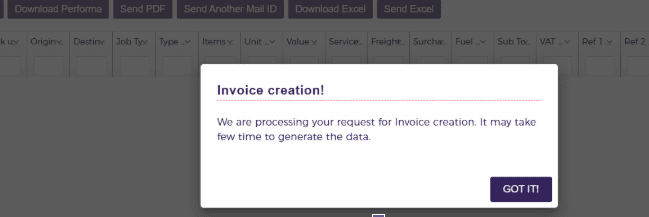
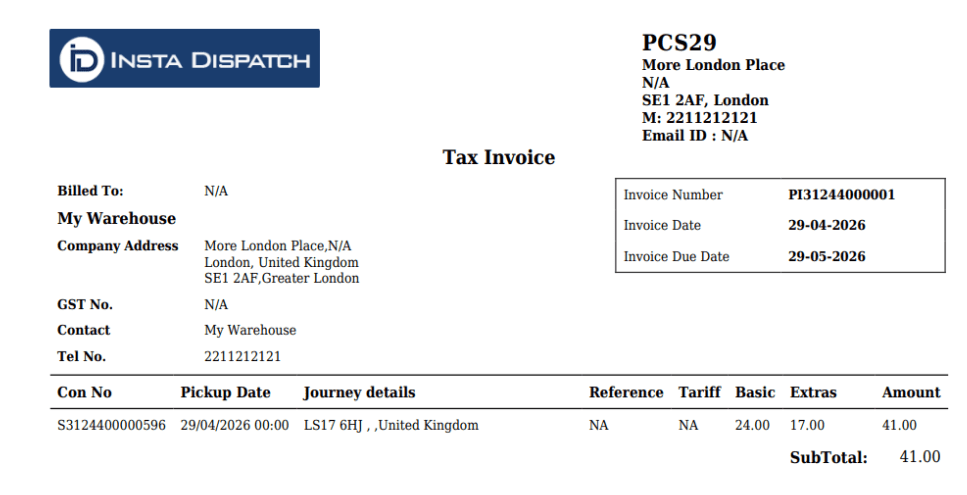
- Proforma Invoice is generated successfully
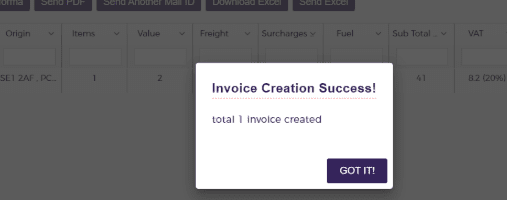
- Available for:
- Download (PDF/Excel)
- Email sharing
- Shipments are listed clearly for verification
Best Practices
- Always review invoice before sending
- Verify shipment selection criteria
- Use date filters carefully to avoid missing shipments
- Use Excel download for detailed validation
Notes
- Proforma Invoice is not the final invoice
- Used for preview and validation purposes only
- Final invoice can be generated after confirmation
