
Invoice Generation allows users to create final invoices for completed shipments.
Invoices can be generated based on date, customer, or reference and can be downloaded or shared with customers.
How to Access
Navigate through the system:
- Go to Customers
- Click Customer Invoice
- Select Generate Invoices
This will open the invoice generation screen
Step-by-Step Process
Step 1: Open Invoice Module
- Click on Customers
- Select Customer Invoice

- Click Generate Invoices
- Click Create Invoices
Step 2: Select Invoice Type
You will see multiple invoice options:
- Invoice by Date
- Invoice by Business (Customer)
- Invoice by Customer Reference
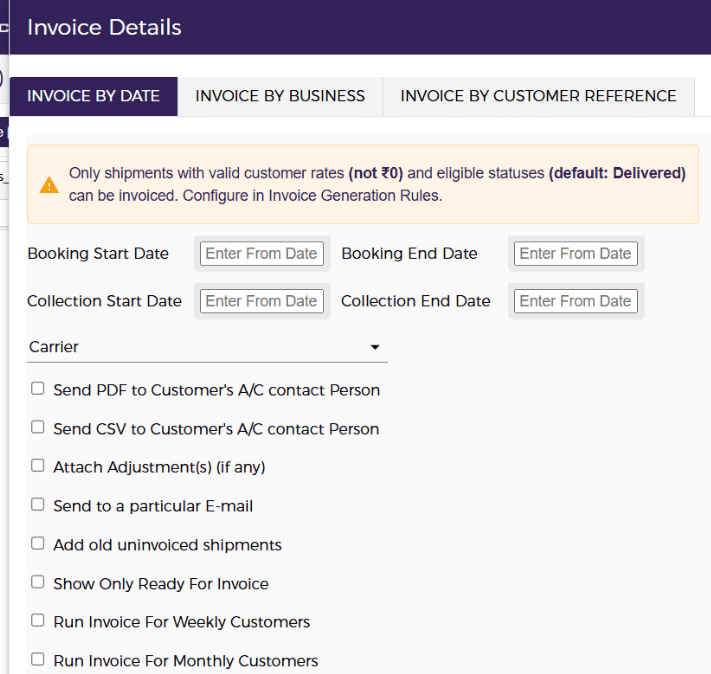
👉 Choose the required option based on how you want to generate invoices
Step 3: Set Invoice Criteria
Fill the required details:
- Booking Start Date & End Date
- Collection Start Date & End Date (optional)
- Carrier (if required)
Step 4: Select Additional Options
You can select below accordingly:
Send PDF to Customer A/C Contact
- Sends the invoice PDF to the customer’s billing email address
- Email is picked from the customer profile settings
Send CSV to Customer A/C Contact
- Sends a detailed invoice CSV file
- Includes:
- All shipment details
- Complete surcharge breakdown with values
- Delivered to the customer’s billing email
Attach Adjustments (if any)
- Generates invoices for:
- Credit notes (price decrease)
- Debit notes (price increase)
- Applies when:
- An already invoiced shipment is re-priced or reconciled
Send to a Particular Email
- Sends invoice PDF to a custom email address
- Useful when:
- Not sending to default customer billing email
Add Old Uninvoiced Shipments
- Includes:
- Pending shipments not invoiced earlier
- Ensures no shipments are missed in billing
Show Only Ready for Invoice Shipments
- Filters and includes only:
- Shipments marked as “Ready for Invoice”
- Helps avoid invoicing incomplete shipments
Run Invoice for Weekly / Monthly Customers
- Generates invoices only for customers with:
- Weekly billing cycle, or
- Monthly billing cycle
- Based on customer invoice terms set in the system
Step 5: Create Invoice
- Click SAVE / Create Invoice
You will see a message:
“We are processing your request for Invoice creation…”
👉 This means invoice generation is in progress
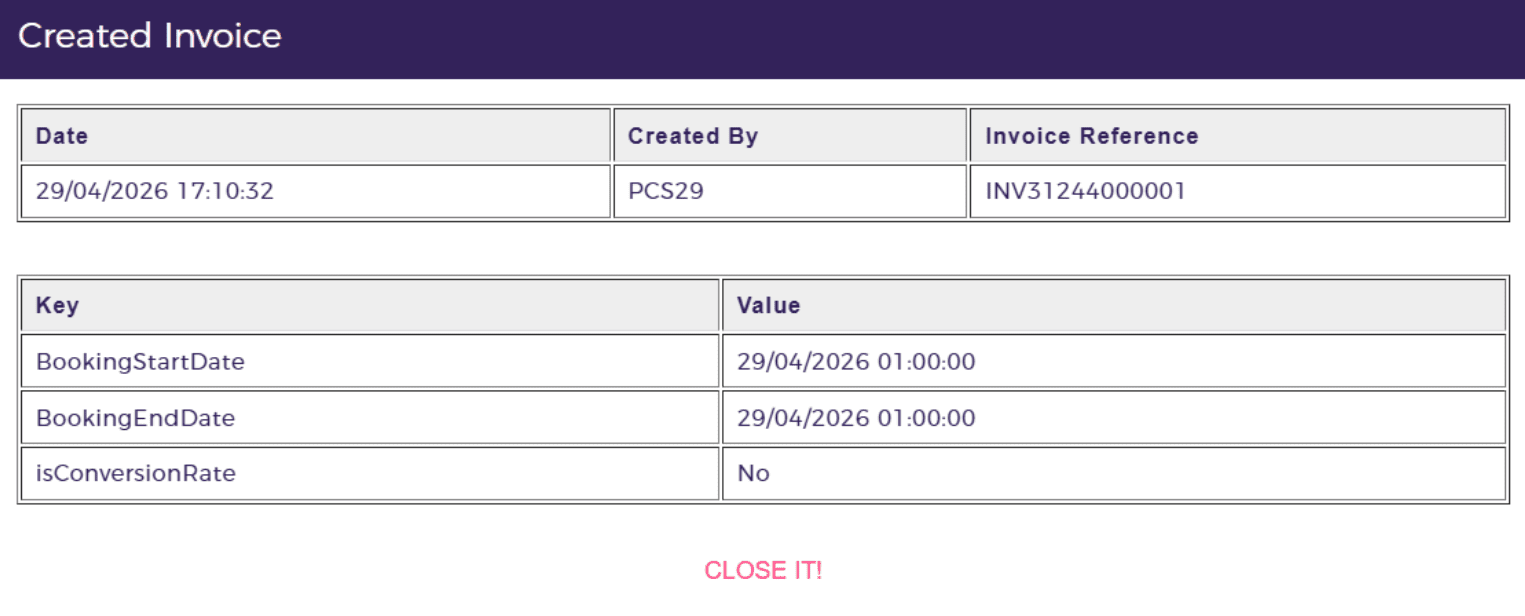
Step 6: Invoice Creation Log
Once processed:
- Go to Action Column
- Click on Created Invoice Log
This will show:
- Invoice Reference
- Created By
- Date
- Selected criteria
Step 7: Download Invoice
From the Action Column, you can:
- 📄 Click Download (PDF) → Invoice with branding & full details
- 📊 Click Excel (CSV) → Shipment-level data
Invoice Types Explained
Invoice by Date
- Generates invoices based on:
- Booking Date
- Pickup Date
Invoice by Business (Customer)
- Generates invoices customer-wise
Invoice by Customer Reference
- Generates invoices based on shipment reference
Output
- Invoice is successfully generated
- Available for:
- PDF download
- Excel download
- Can be sent directly to customers
Key Features
- Supports multiple invoice generation methods
- Allows shipment filtering & grouping
- Enables automatic email sending
- Provides detailed invoice logs
Best Practices
- Verify date filters before generating
- Use PDF for customer sharing
- Use Excel for internal validation
Notes
- Only shipments with:
- Valid rates (not ₹0)
- Eligible status (e.g., Delivered)
will be invoiced
- Configure rules under Invoice Generation Settings if needed
