
What is Booking Validation?
Booking Validation settings allow Admin users to control how the order creation screen behaves. From this page, you can decide:
- which fields are visible on the order creation page
- which fields are mandatory
- the maximum character length allowed in selected fields
- whether validation should apply while editing an existing order
- carrier-specific booking rules
- restricted postcode rules while booking orders
- drop-off related settings
- custom invoice field settings
These settings apply to the order creation page and help standardize the information captured during booking.
Important: These settings apply to both the order creation page on Admin Portal and on the customer Portal as well.
Before changing Booking Validation settings, make sure:
- you have access to manage order
- you understand which fields your team must capture during booking
- you know whether the validation should apply only during order creation or also during order editing
- you know whether the settings need to be configured for a specific carrier
How to access Booking Validation
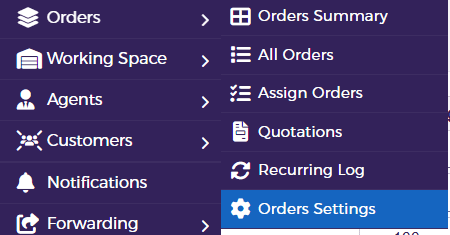
Go to the Order Section from the Side Panel and select Order settings in the Admin Portal.
This page allows you to configure validation rules for pickup, delivery, package, invoice, and other booking-related fields.
Overview of the Booking Validation page
The page is divided into multiple sections:
- Order Creation Screen Validation
- Do Not Apply Validation while Editing Order
- Carrier selection
- Pickup fields
- Delivery fields
- Other fields
- Custom Invoice
- Restrictions While Booking Orders
- Drop Off
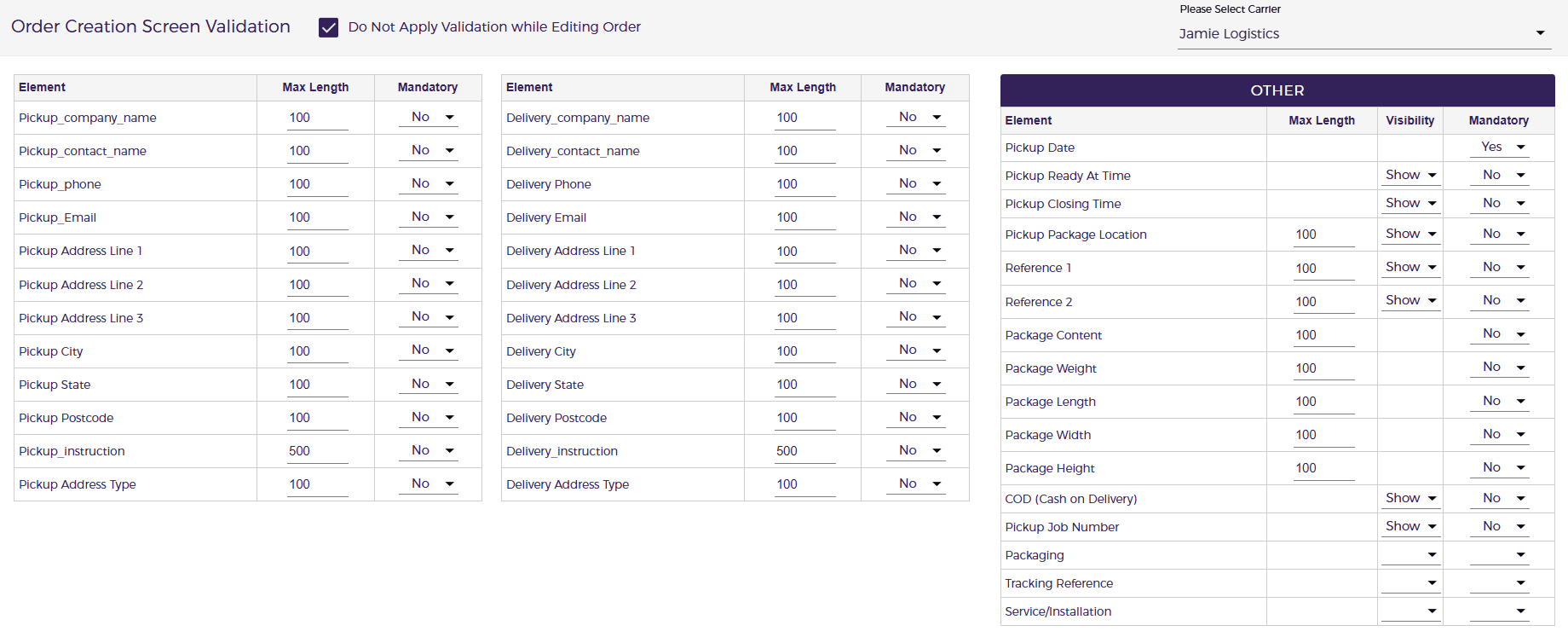

Each section is explained below.
1. Order Creation Screen Validation
This is the main validation setup page for the order booking screen.
From here, Admin users can define what information should be shown and what information must be completed while creating an order.
This helps ensure booking data is captured in a consistent format and reduces missing information during order creation.
2. Do Not Apply Validation while Editing Order
At the top of the page, there is a checkbox called:
Do Not Apply Validation while Editing Order
What this means
When this option is enabled, the system will not enforce the configured booking validation rules while editing an existing order.
Why is this useful
This can be helpful when:
- An existing order needs to be updated quickly
- older orders do not contain all the newly required fields
- you want strict validation only during new order creation, not during editing
Example
If Pickup Contact Name is made mandatory, that field may be required while creating a new order. But if this checkbox is enabled, Admin users may still be able to edit an existing order without being forced to fill that field.
3. Carrier selection
At the top-right of the page, there is a carrier dropdown:
Please Select Carrier
In the screenshot, a carrier is selected.
What this means
Booking validation settings appear to be configurable based on the selected carrier.
Why this matters
This allows businesses to apply different field rules depending on the carrier workflow.
For example:
- one carrier may require stricter booking information
- another carrier may need specific references or packaging details
- invoice or service fields may vary by carrier
4. Pickup section
The Pickup section allows you to configure validation rules for pickup-related fields.
Visible fields in the screenshot include:
- Pickup_company_name
- Pickup_contact_name
- Pickup_phone
- Pickup_Email
- Pickup Address Line 1
- Pickup Address Line 2
- Pickup Address Line 3
- Pickup City
- Pickup State
- Pickup Postcode
- Pickup_Instruction
- Pickup Address Type
For each pickup field, the page shows:
- Element
- Max Length
- Mandatory
Element
This is the field name that appears in the booking flow.
Max Length
This controls the maximum number of characters allowed in that field.
For example:
- most pickup fields show a maximum length of 100
- pickup instruction shows 500
This is useful for controlling data quality and preventing overly long inputs.
Mandatory
This controls whether the field is required during booking.
If set to:
- Yes = user must fill the field
- No = user can leave it blank
How to use pickup settings
Use these settings when you want to ensure pickup information is always collected properly.
For example:
- make Pickup Phone mandatory if the driver must contact the sender
- make Pickup Instruction optional if not always needed
- keep Pickup Address Line 2 optional in most cases
5. Delivery section
The Delivery section works in the same way as the Pickup section, but for delivery-related fields.
Visible fields in the screenshot include:
- Delivery_company_name
- Delivery_contact_name
- Delivery Phone
- Delivery Email
- Delivery Address Line 1
- Delivery Address Line 2
- Delivery Address Line 3
- Delivery City
- Delivery State
- Delivery Postcode
- Delivery_Instruction
- Delivery Address Type
For each delivery field, the settings shown are:
- Element
- Max Length
- Mandatory
How to use delivery settings
This section helps ensure the correct delivery details are captured while booking an order.
Examples:
- make Delivery Contact Name mandatory if the consignee name must always be provided
- make Delivery Postcode mandatory to avoid incomplete address entries
- allow Delivery Instruction to remain optional unless delivery notes are required
6. Other section
The Other section controls additional booking fields beyond pickup and delivery.
Visible fields in the screenshot include:
- Pickup Date
- Pickup Ready At Time
- Pickup Closing Time
- Pickup Package Location
- Reference 1
- Reference 2
- Package Content
- Package Weight
- Package Length
- Package Width
- Package Height
- COD (Cash on Delivery)
- Pickup Job Number
- Packaging
- Tracking Reference
- Service/Installation
This section shows the following columns:
- Element
- Max Length
- Visibility
- Mandatory
Visibility
Visibility determines whether a field is shown on the order creation screen.
Why visibility matters
This allows Admins to simplify the booking screen by showing only the fields relevant to their workflow.
Example:
- show COD only if COD orders are supported
- show Pickup Job Number only if your operations use external booking references
- hide Tracking Reference if that field is not used during booking
Mandatory
Mandatory works the same way as in pickup and delivery fields.
This setup helps ensure that essential booking fields are completed while optional fields remain flexible.
7. Meaning of the key fields in the Other section
Pickup Date
The booking date for collection.
This is usually one of the most important fields and is shown as mandatory in the screenshot.
Pickup Ready At Time
The time from which the parcel is ready for collection.
Pickup Closing Time
The latest time by which pickup should happen.
Pickup Package Location
The location inside the pickup site where the parcel is kept, such as reception, warehouse desk, loading bay, or security gate.
Reference 1 and Reference 2
Additional booking references used for internal tracking, customer references, invoice references, or job linking.
Package Content
Describes what is inside the shipment.
Package Weight
Weight of the shipment or package.
Package Length / Width / Height
Parcel dimensions used for operational or rate calculation purposes.
COD (Cash on Delivery)
Used when payment needs to be collected on delivery.
Pickup Job Number
An internal or external pickup reference number.
Packaging
This can be used to identify the package type or packing format.
Tracking Reference
A reference used to track the shipment or map it to an external system.
Service/Installation
Use this field when the delivery also includes an additional service, such as installation, assembly, setup, or placement at the delivery location. It is commonly used in 2-man delivery and white glove delivery jobs. The time entered here in minutes is also considered during route optimization, helping create more accurate schedules and stop timings.
8. Custom Invoice section
The Custom Invoice section controls invoice-related fields that are required for shipments, especially where export, customs, or commercial invoice information is needed.
Visible fields in the screenshot include:
- Reason for Export
- Type of Export
- Tax Status
- Terms of Trade
- Sender EORI Number
- Receiver EORI Number
- Country of Currency
- Sender VAT Number
- Receiver VAT Number
- Sender IOSS Number
- Item Weight
- HS Code
- Item SKU
What this section is used for
This section is useful when invoice, tax, customs, or international shipment information must be captured during order booking.
How to use it
- set fields to Show if users should see them
- set them as Mandatory only when your workflow requires that information
Example use cases
- make HS Code mandatory for international customs workflows
- make VAT Number visible only for business shipments
- keep export-related fields hidden for domestic-only operations
9. Restrictions While Booking Orders
This section is used to control postcode-based restrictions during booking.
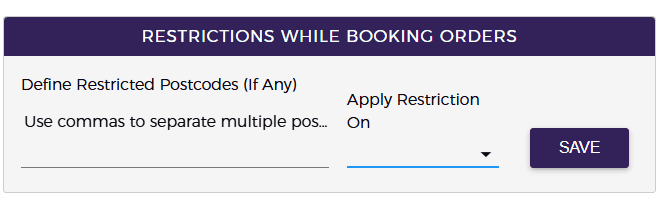
Define Restricted Postcodes
This field allows you to enter one or more postcodes that should be restricted.
If multiple postcodes are added, they should be separated by commas.
Apply Restriction On
This dropdown likely determines where the restriction should apply, such as pickup, delivery, or both.
Click Save after entering or updating the restricted postcode rules.
Why this is useful
This helps control serviceability and prevents bookings in locations your business or carrier does not support.
Example
You may want to restrict:
- remote or unsupported delivery areas
- non-serviceable postcodes
- special locations not covered under standard booking rules
10. Drop Off section
At the bottom-right, there is a Drop Off section with a dropdown.
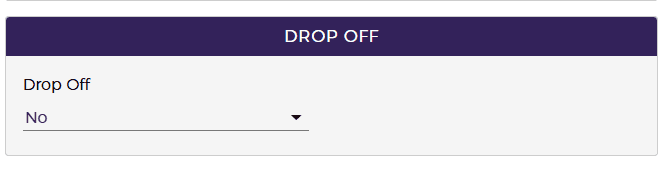
What does drop-off means
Drop Off means the parcel does not need to be picked up from the sender. Instead, the parcel is already available at the drop-off location, and the order is processed from that drop-off point for further processing or delivery.
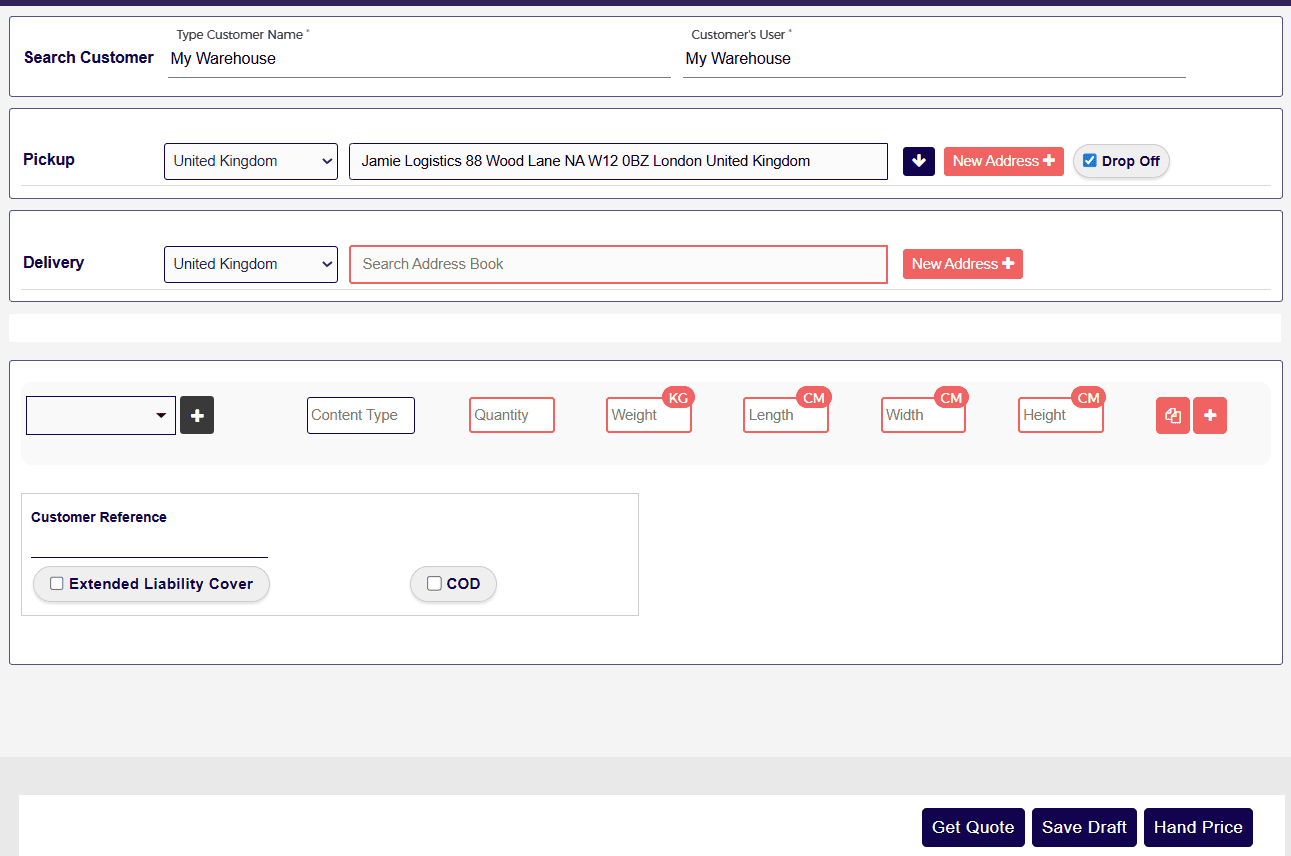
If Drop Off is enabled, the pickup location and pickup date do not need to be entered while creating the order. Once the order is booked, the shipment status is marked as Collected, which means only the delivery job appears on the route planner for assignment to the agent.

