
What is the difference between a draft and a quotation?
A draft saves the shipment details only. It does not save the pricing information.
A quotation saves both the shipment details and the pricing information.
- Draft = shipment details saved, pricing not saved
- Quotation = shipment details and pricing both saved
When are drafts and quotations used?
Delivery businesses use drafts when the shipment information is available, but the booking is not yet ready to be completed. For example, the team may still be waiting for confirmation from the customer, final parcel details, or the delivery date.
Delivery businesses use quotations when they want to share or save a price for the shipment before confirming the booking. This is useful when a customer first asks for a price and the order may be booked later once the quote is approved.
How to create a draft
To create a draft order:
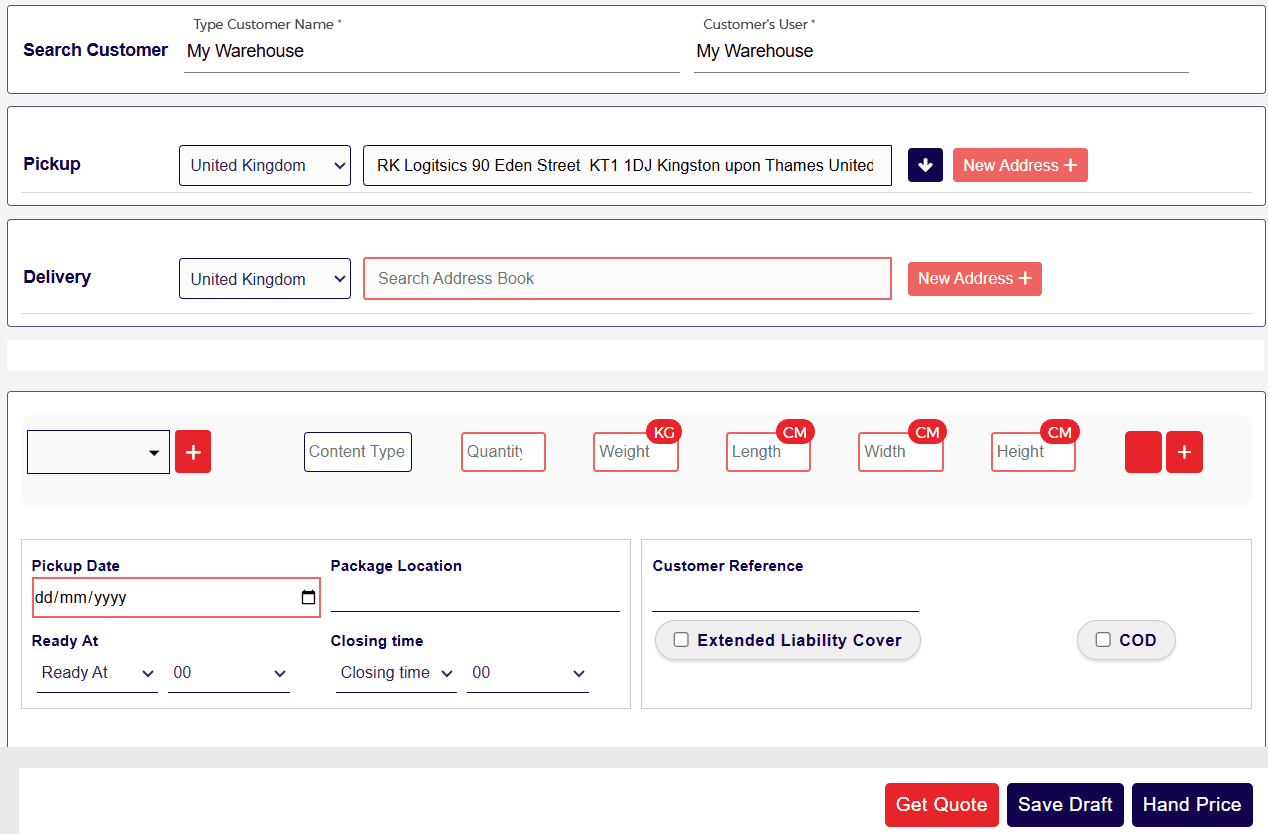
- Go to Create Order
- Select Single Order
- Enter all the required order details such as:
- customer
- pickup details
- delivery details
- parcel details
- any other required booking information
- Click Save Draft
Once saved, a draft order will be created in the system.
How to save a quotation
To save a quotation:
- Go to Create Order
- Select Single Order
- Enter all the required order details such as:
- customer
- pickup details
- delivery details
- parcel details
- any other required booking information
- Click Get Quote
- The available rates will be shown on the right-side panel
- Select the rate or rates that apply
- Click Save Quote
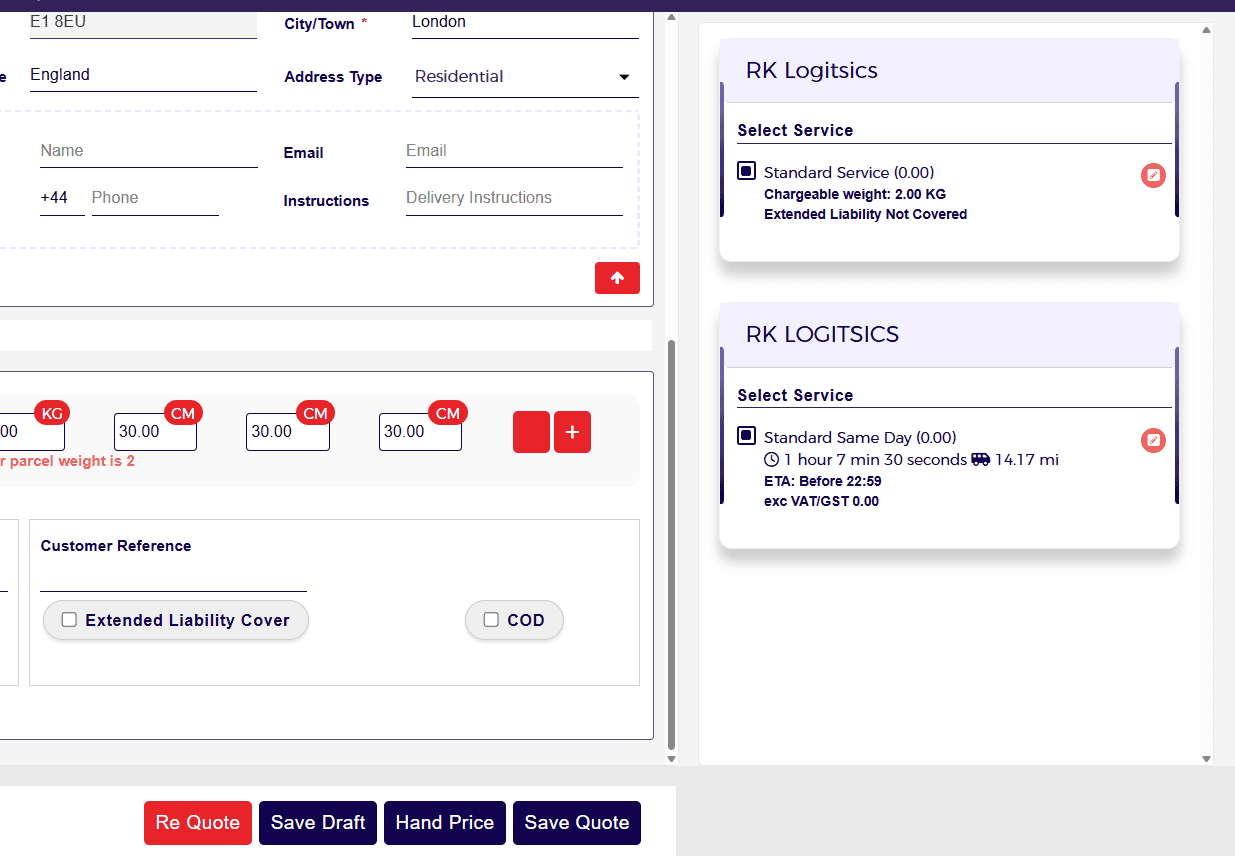
After clicking Save Quote, an input box will appear where you can enter the email address to which you want to send the quotation.
- If you want to email the quotation, enter the email address and then click Send / Save Quote
- If you only want to save the quotation in the system and do not want to send it to anyone, leave the email field blank and then click Send / Save Quote

Once this is done, the quotation will be saved in the system.
How to access saved drafts and quotations
To view saved drafts or quotations:
- Go to Orders from the side panel
- Select Quotations
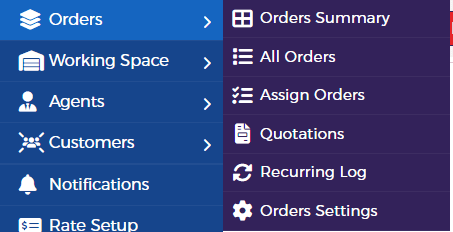
The saved drafts and saved quotations will appear in the list.
From this screen, you can click Open Quote to open the order screen and continue with the booking process.
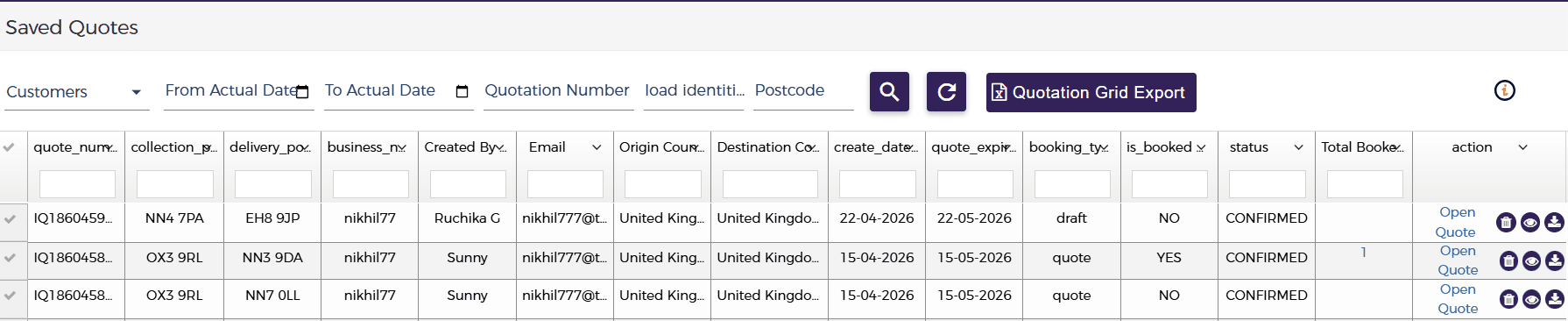
What can you do from the saved quotations page?
From the saved quotations page, you can:
- open a saved draft or quotation
- continue and create the order from it
- delete drafts or quotations
- download the quotation
- view the quotation email template
There are also filters available at the top of the page to help search and view saved drafts and quotations more easily.
Some of the visible filters include:
- Customer
- From Actual Date
- To Actual Date
- Quotation Number
- Load Identity
- Postcode

These filters help users quickly find specific saved drafts or quotations in the grid.
Quick summary
Use Save Draft when you want to save only the shipment details and complete the order later.
Use Save Quote when you want to save both the shipment details and the pricing information for future booking or customer approval.
To access both drafts and quotations, go to Orders > Quotations.
