
What are domestic orders?
A domestic order is a shipment where both the pickup address and the delivery address are within the same country. In InstaDispatch, domestic single orders can be created manually from the Admin Portal when you want to book one order at a time instead of importing orders in bulk.
Before creating a new single order manually, make sure you have:
- A customer created in the system. If you are creating orders for your own company, create your own company as a customer.
- A pickup address and a delivery address ready.
- Rates configured, if you want the system to return your configured pricing. If no rates are configured, a default 0 rate may be shown and used.
- Parcel details such as quantity, weight, and dimensions. If exact parcel details are not available, you can enter dummy parcel details or use the default box parcel dimensions.
How to create a new single order manually?
From the header of the Admin Portal, click Create Order on the top-right side and then select Single Order.

An order creation screen will open
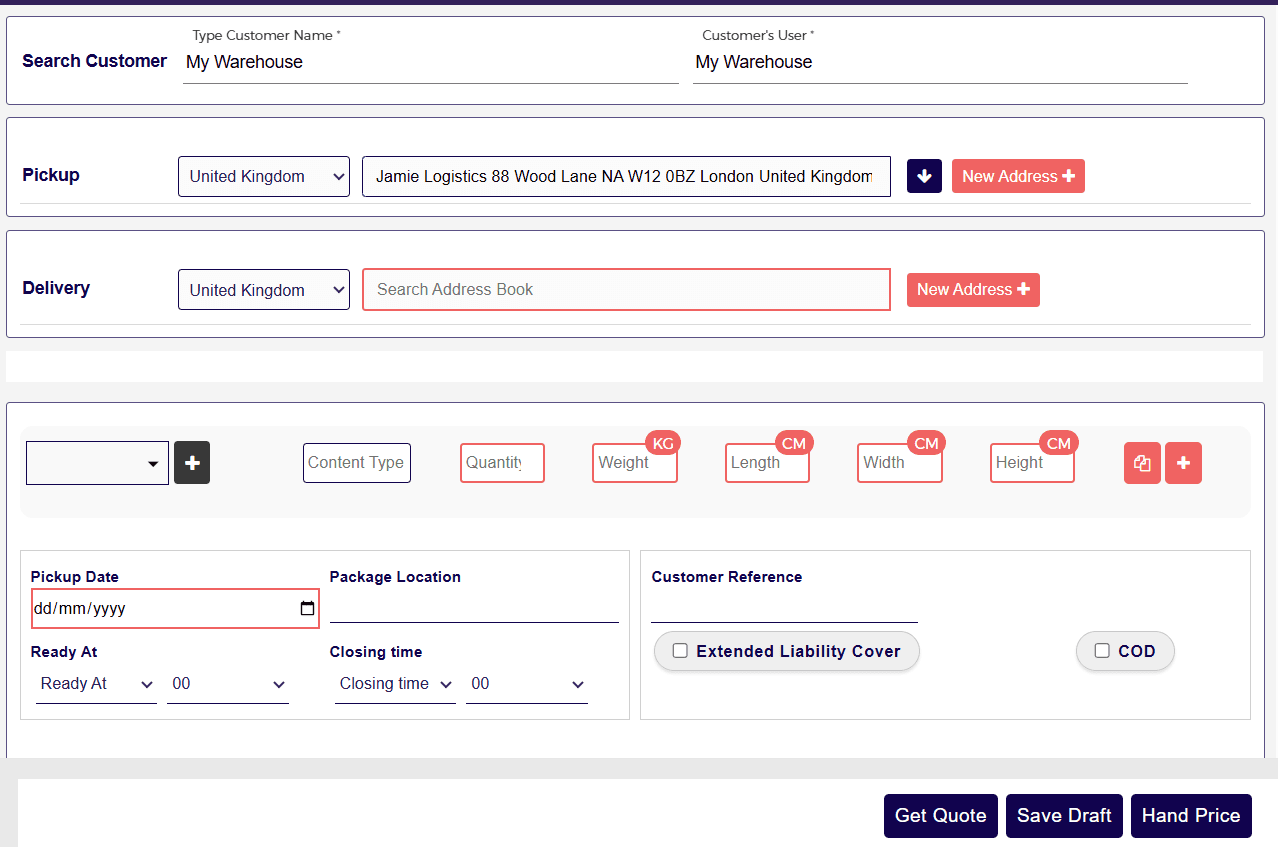
In the Search Customer section, start typing the customer name. Matching customers will appear in the dropdown. Select the required customer from the list.
If no separate customer has been created, My Warehouse may appear as the default customer.
Once the customer is selected, the Customer’s User field is auto-populated. This field is optional and can be used when you want to associate a specific customer user with the order.
After selecting the customer, the pickup address is auto-populated using the customer’s saved address.

You can change the pickup address in two ways:
Option 1: Select from Address Book
Choose an address from the customer’s address book.
The customer address book stores unique addresses previously used for that customer. This helps save time because address details such as contact name, phone number, and email can be auto-filled once the address is selected.
Using the address book also makes repeat bookings faster and helps drivers identify previously used locations more easily.
You can check the detailed guide on Address Book here.
Option 2: Add a New Address
Click New Address and use Google search to find the pickup location.
After selecting the address, the map is displayed on the screen. If the selected location is slightly away from the exact point, you can drag and drop the map pin to save the exact location.
After selecting the customer, the pickup address is auto-populated using the customer’s saved address.
Under the Delivery section, enter the delivery address in the same way.
You can either:
- Search and select a saved address, or
- Click New Address to search and add a new delivery address manually.
After selecting the address, the map is populated so the exact drop location can be confirmed.
Add the parcel details for the order, such as:
- Content type
- Quantity
- Weight
- Length
- Width
- Height
If exact parcel details are not available, you can enter dummy parcel details or use the default box parcel dimensions.
You can also add or copy multiple parcel types within the same order if required.

You can also add or copy multiple parcel types within the same order if required.

Complete the remaining order information, including:
- Pickup Date
- Package Location (optional)
- Ready At time
- Closing Time (optional)
- Customer Reference (optional)
- COD value, if Cash on Delivery applies
- Extended Liability Cover, if required
Fill in all required details before proceeding to pricing or booking. Once all order details are entered, you will see three options:
1. Get Quote
Use Get Quote to fetch the service rate for the order.
- If rates are configured in the system, the configured rates will be shown.
- If rates are not configured, the system may return a default 0 rate.
This option is useful when you want the system to calculate or return the available service pricing automatically.
2. Save Draft
Use Save Draft when you want to save the order and complete or book it later.
This is useful when the booking is still in progress or when some details are pending.
3. Hand Price
Use Hand Price when you want to enter a custom price manually instead of using configured rates.
This is useful when:
- No pricing setup is configured
- You want to override the default or configured price
- You need to book a one-off order with a special price
Booking an order using Get Quote
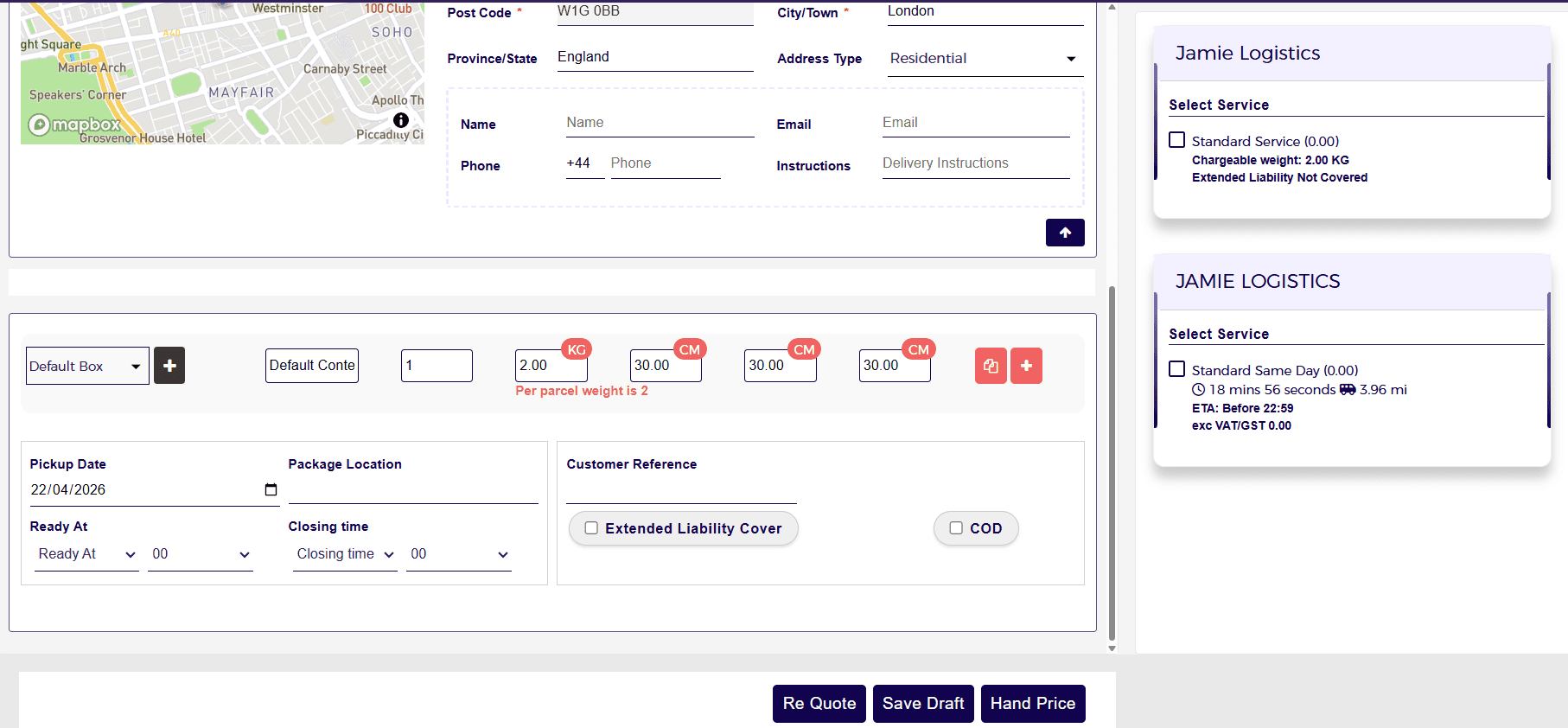
Step 1: Click Get Quote
After entering all order details, click Get Quote.
If no rates are configured, default 0-value rates may be displayed. If you want to configure your own pricing rules in the system, the Admin must purchase the Pricing (Rate) Setup add-on from the Accounts page.
Step 2: Select a service
By default, two service types may be shown:
- Standard Service
- Standard Same Day Service
What is the difference between the two?
- Standard Service is generally based on the total weight of the order.
- Standard Same Day Service is generally based on the total distance to be covered.
If rate calculation is not important for the booking, you can simply select any available service and continue.
Step 3: Book the order
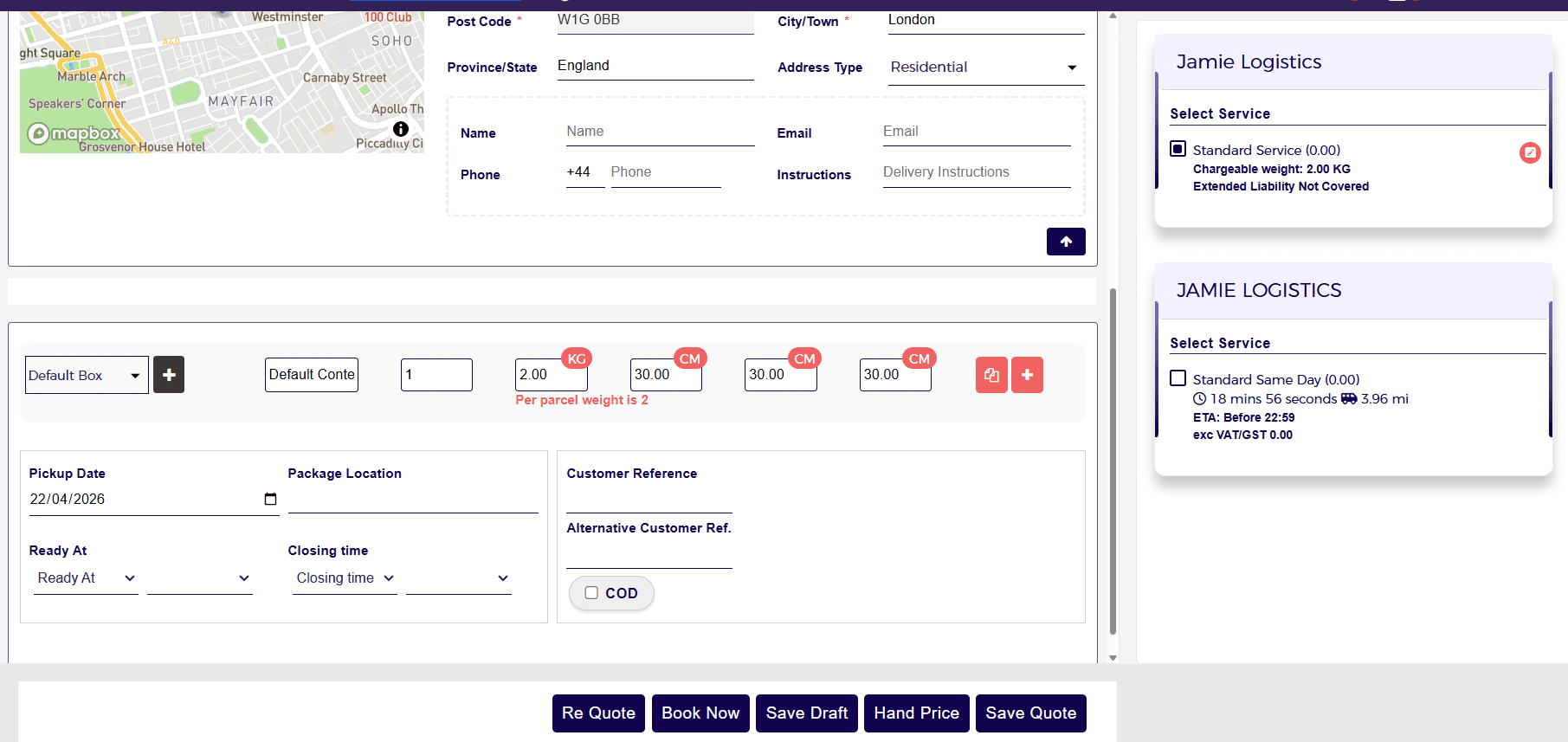
After selecting the required service, click Book Now to create the order.
Important note:
- If you select Standard Service (weight-based), a label will be generated.
- If you select Standard Same Day Service (distance-based), a label will not be generated.
You can also choose to save the order as a draft or save it as a quote instead of booking it immediately. Check out the detailed guide on how to save an Order as a draft or a quote.
Booking an order using Hand Price
The Hand Price feature is useful when you do not have a pre-set price in the system or when you want to book the order with a custom manually entered price.
Step 1: Enter all order details
Complete the customer, pickup, delivery, parcel, and schedule details first.
Step 2: Click Hand Price
Click the Hand Price button.
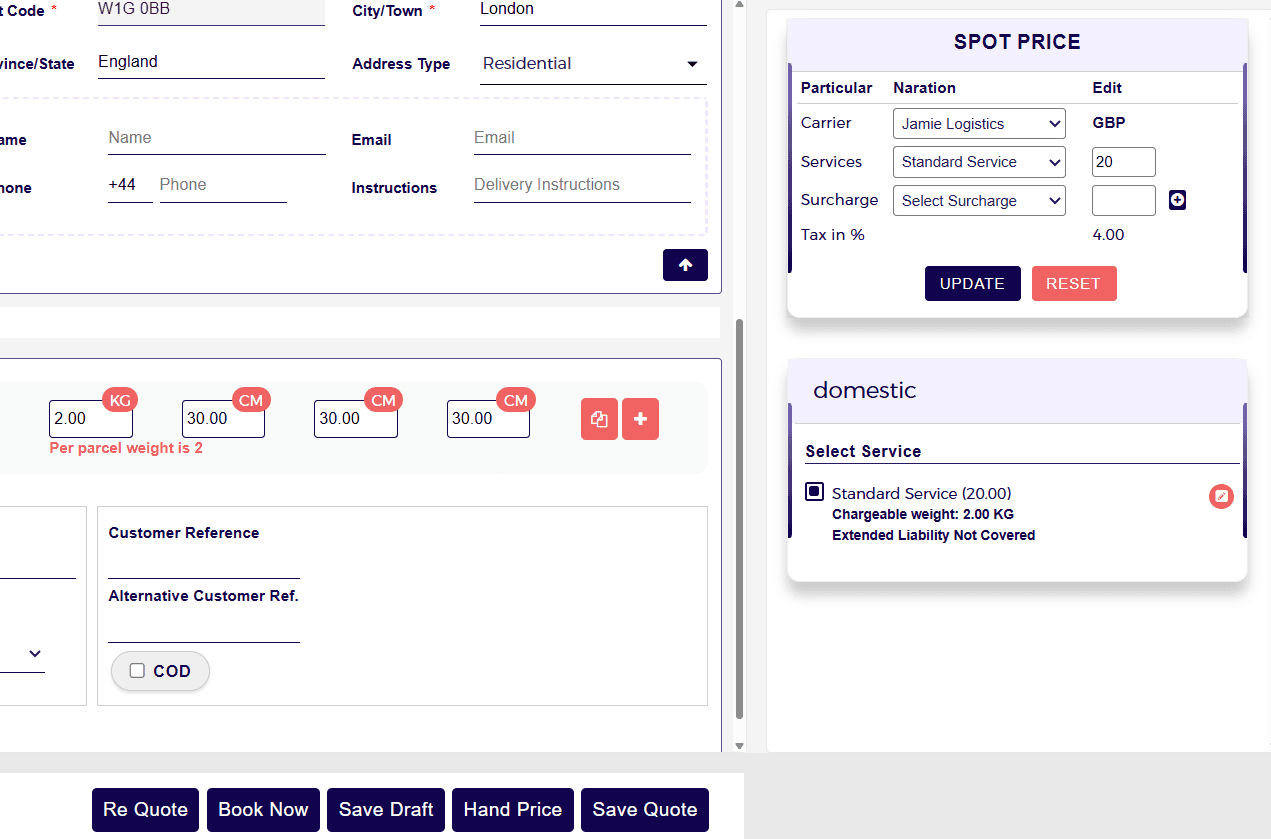
Step 3: Add pricing manually
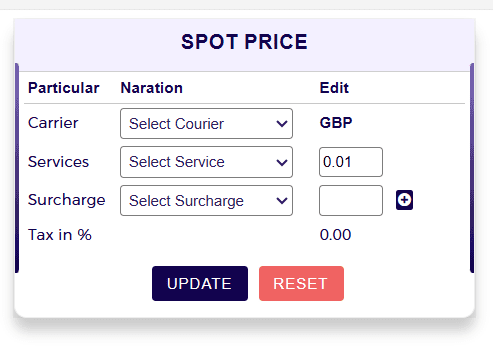
In the hand price section:
- Select the Carrier
- Select the Service
- Enter the custom amount against the selected service
- Select a Surcharge, if required
- Click Update
Step 4: Select the displayed service
After clicking Update, the service will appear below. Select the service to continue.
Step 5: Book the order
Click Book Now to create the order.
You can also save the manually priced order as a draft or quotation if needed.
Manage field visibility and mandatory settings
If you need to make certain fields mandatory, or want to hide or show specific fields on the order creation page, you can manage this from the Booking Validation page.
From the Booking Validation settings, you can control which fields are:
- visible on the order creation page
- hidden from the order creation page
- mandatory for users to complete before creating the order
These settings apply to both:
- Admin order creation page
- Customer order creation page
To understand all available Booking Validation settings in detail, check the guide on Booking Validation Settings.
Quick summary
To create a domestic single order manually in the Admin Portal:
- Open Create Order and select Single Order
- Select the customer
- Confirm or update the pickup address
- Add the delivery address
- Enter parcel details
- Add pickup date, times, and any optional order information
- Choose Get Quote, Save Draft, or Hand Price
- Select the service and click Book Now
Notes
- If your business creates orders for itself, your own company should also be created as a customer.
- Address Book helps speed up repeat bookings and auto-fills saved contact details.
- If parcel details are unavailable, dummy parcel values or default dimensions can be used.
- If pricing is not configured, the system may still allow booking using a 0-value rate or with the Hand Price option.
- Pricing configuration availability may depend on the Pricing (Rate) Setup add-on.
- Related InstaDispatch website resources are listed here:
