
Who is a customer’s user in InstaDispatch?
A customer’s user is a person created under an existing customer account in InstaDispatch. This user can be given access to the customer portal (https://customer.instadispatch.com/) so they can use customer-side functions based on the access provided. A customer can have multiple users.
- A user can be created without login credentials for internal or operational use only.
- A user can also be created with login credentials so they can sign in to the customer portal.
- Every user remains linked to a specific customer account.
- Make sure the customer account already exists in InstaDispatch.
- Keep the user’s name, phone number, email address, and warehouse address ready.
- Decide whether the user needs portal login access or should remain a non-login user.
- If login details will be emailed, use the correct registered email address.
Create a user from Admin Portal without login credentials
- From the left-hand menu on Admin Portal, click Customers.
- Open Customers List.

- Select the required customer and click the action edit icon to open the customer details screen.
- In the customer details pop-up, click the User tab.
- Click Add User.
- Fill in the user details such as name and phone number.
- Leave User Create login unticked if the user should not have portal access.
- Select the warehouse address if required, then click Save.
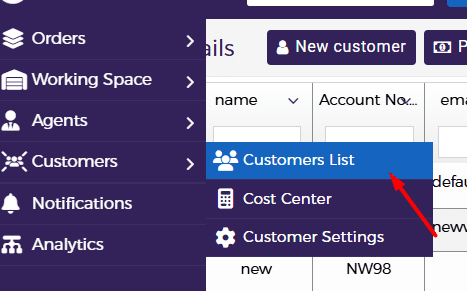


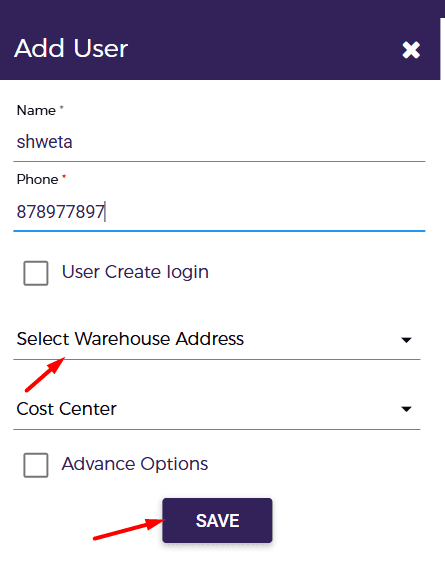
The default address of the user will normally be the customer’s default address. If multiple warehouse addresses are available, select the required warehouse address for that user.
Create a user from Admin Portal with login credentials
- Open the same customer User tab from the Dispatcher side and click Add User.
- Enter the basic user details.
- Tick User Create login.
- Enter the user email address and the desired password.
- If required, tick Send Mail To User so the login details are emailed to the user.
- Select the warehouse address and cost center if needed, then click Save.
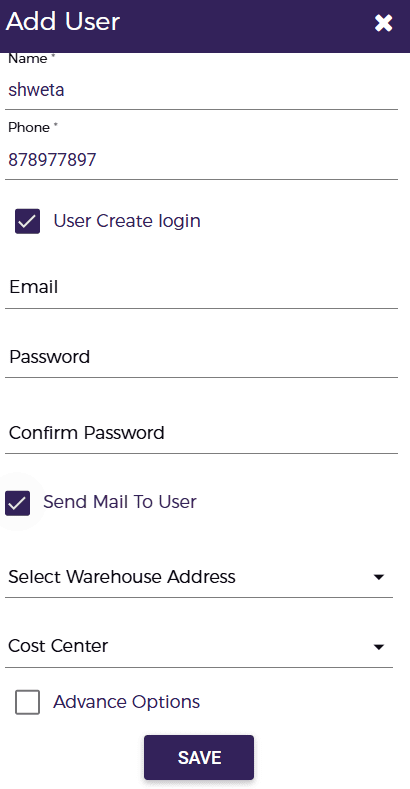
After saving, the created user will be visible in the user list and can sign in to the customer portal using the provided credentials.
Delete a user
- Open the required customer from the Dispatcher side and go to the User tab.
- Locate the user in the user list.
- Click the Delete icon in the Action column.
- Confirm the deletion if a confirmation prompt appears.
Once deleted, the user will no longer remain active in the customer user list.

Reset a user password from the dispatcher side
- Open the required customer and go to the User tab.
- Locate the user whose password needs to be changed.
- Click the password reset icon in the Action column.
- In the Reset Password window, either enter a new password and click Reset, or send the reset link to the registered email address.
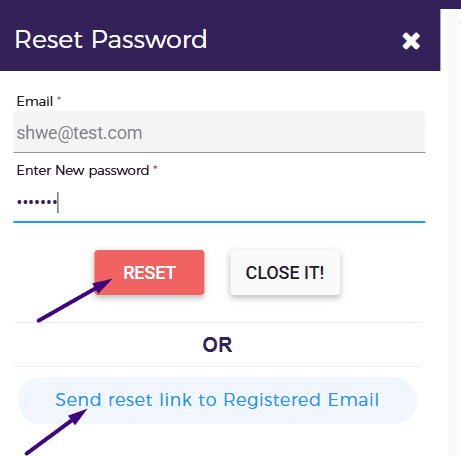
This option allows the dispatcher to set a new password directly or send a secure reset link to the user.
Create a user from the customer login portal
- Log in to the customer portal (https://customer.instadispatch.com/) using the customer account credentials.
- Click Users from the left-side menu.
- Click Add User.
- Fill in the required user details and click Add.
- If the user also needs portal access, tick User Create login and enter the email address and desired password before saving.
- The newly created user will appear in the user list.
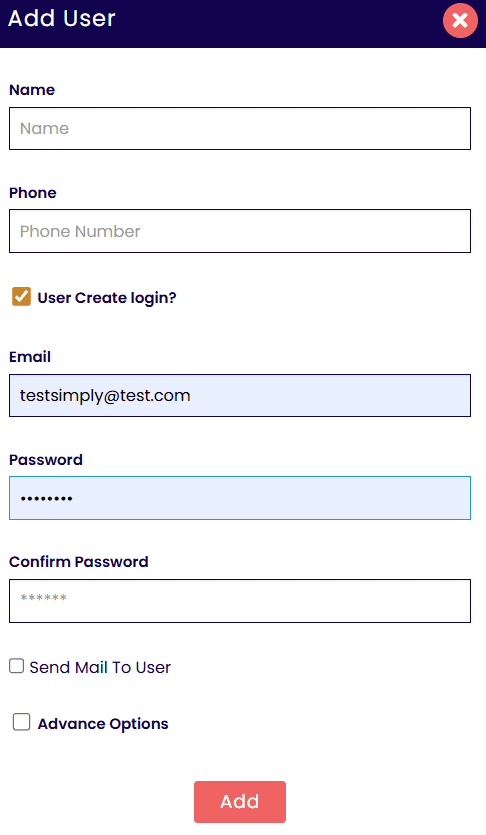
By ticking Send Mail To User, the login details can be sent to the user by email.
Delete a user
- Click Users from the left-side menu.
- Locate the user in the user list.
- Click the Delete icon in the Action column.
- Confirm the deletion if a confirmation prompt appears.
Once deleted, the user will no longer remain active in the customer user list.

