
What are Team Members in InstaDispatch?
Team Members are internal portal users created by the company to manage day-to-day business operations. Depending on their role and permissions, they can perform specific actions within the admin portal.
Their access is controlled through:
- Role
- Branch access
- Hub association (if applicable)
For more details on role permissions, refer to the Access Control in InstaDispatch guide.
Before creating a team member in InstaDispatch, make sure you have the required setup ready in your account.
You should have:
- Access to the Working Space > Team page
- Permission to create or manage team members
- At least one Branch already created in the system, since branch access is assigned while creating the user
- A decision on which Role should be assigned to the team member
- A unique email address for the team member, which will be used for login to the admin portal
It is also recommended to review the Access Control in InstaDispatch guide before creating a user, especially if you need to assign a custom role instead of using the default roles.
Default roles available in InstaDispatch include:
- Admin
- Dispatcher
- Manager
- Finance
- Sales
The user will only be able to access the branches assigned to them. They cannot view or manage data for branches not assigned to their account.
How to Create a Team Member
To create a new team member in InstaDispatch:
Click Working Space from the side panel.
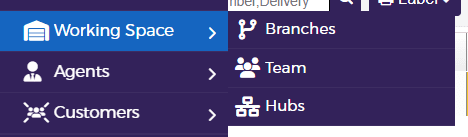
Select Team.
Click Dispatcher or User.
A popup will open to enter the team member details.
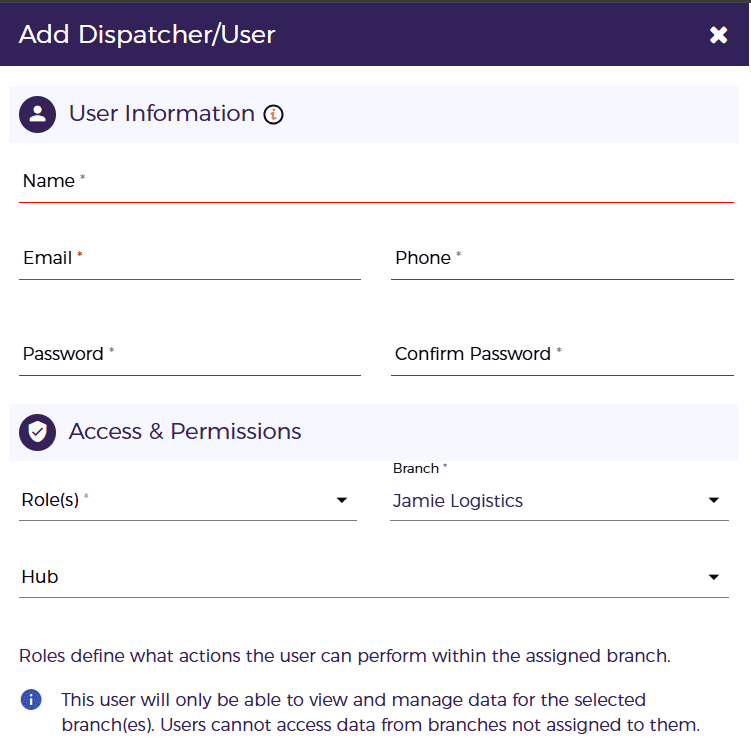
You will need to enter the following information:
- Name
- Phone
- Password
After entering the basic details, go to the Access & Permissions section.
Access & Permissions
The Access & Permissions section defines the access level of the user.
Here, you can:
- Choose one of the default roles:
- Admin
- Dispatcher
- Manager
- Finance
- Sales
- Or create a new role if the default roles do not meet your requirement
To understand role creation and permission setup in more detail, check the Access Control in InstaDispatch guide.
Branch Access
While creating the user, you can select the branch or branches the user should have access to.
This means:
- A user can be assigned to one branch
- Or a user can be given access to multiple branches if your company has more than one branch
The user will only be able to view and manage data for the selected branches.
They cannot access data from branches not assigned to them.
Hub Association
The user can also be associated with a Hub.
The Hub field will only be visible while creating or editing the user if a hub has already been created in your account.
What does hub association do?
When a user is associated with a hub:
- They can see the jobs/ orders belongs to that hub on the Route Planner
- This helps in a more organized and clean way to plan and assign jobs
- The user will only be able to see jobs that are part of the assigned hub
This is useful when operations are divided by hub and different users manage different delivery flows.
After entering all the required details:
- Click Save
The user will be created in the system.
How to Team Member access to the Portal?
The team member can then log in to the admin portal using their own login credentials:
http://admin.instadispatch.com/
The login credentials are created by the Admin or Owner of the company.
How to Edit User Details
To edit an existing team member:
- Click Working Space from the side panel
- Select Team
- Click the Edit icon under the Actions column for the user you want to update
- A popup will open
- Edit the required user details
- Click Save

The updated details will be saved in the system.
How to Delete a User
To delete a user:
- Click Working Space from the side panel
- Select Team
- Click the Delete icon under the Actions column for the user you want to remove

The user entry will be deleted from the system.
How to Reset Password of a User
To reset a team member’s password:
- Click Working Space from the side panel
- Select Team
- Click the Lock icon under the Actions column for the user whose password you want to reset
- A popup will open

There are 2 ways to reset the password:
Option 1: Reset password directly
The Admin, or any user who has access to the Team page, can enter a new password directly in the popup and click Reset.
Option 2: Send reset link to registered email
The Admin can also send a password reset link to the user’s registered email address.
An email will be sent to the registered email ID with a link to reset the password.
- Team Members are internal users who manage daily operations in InstaDispatch
- They can be assigned roles such as Admin, Dispatcher, Manager, Finance, or Sales
- Access is controlled by role, branch, and optional hub association
- A user can be created from Working Space > Team > Dispatcher or User
- Existing users can be edited, deleted, or have their password reset from the Team page
