
What is an agent / driver in InstaDispatch?
An agent or driver is the delivery resource created in InstaDispatch to carry out pickups and deliveries through the driver app and route operations.
A driver record can include the driver’s name, phone number, hub, login details, address, timings, and vehicle association.
Before you begin
- Make sure you are logged in with permission to manage Agents/Drivers.
- Keep the driver’s name, phone number, email address, password, and address details ready.
- If the driver needs to be assigned a vehicle, ensure a vehicle already exists or use Auto Create Vehicle during setup.
- Use a unique email address for every driver who needs access to the InstaDispatch driver app.
Open the driver creation screen
- From the left-hand menu, go to Agents.
- Select Agents/Drivers.
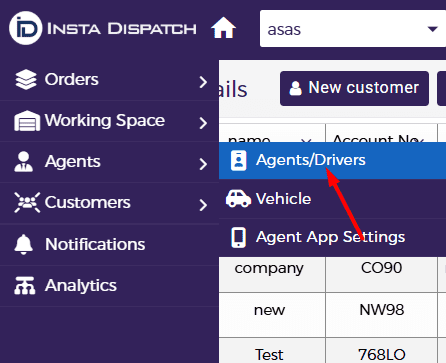
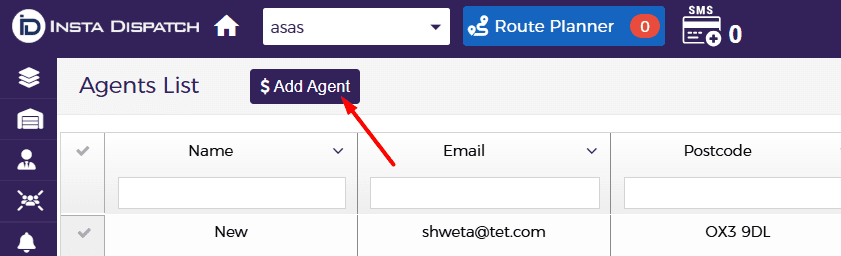
- The Agents List screen will open.
- Click Add Driver to open the driver creation form.
Create a driver
Use this option to create a new driver record and provide app access where required.
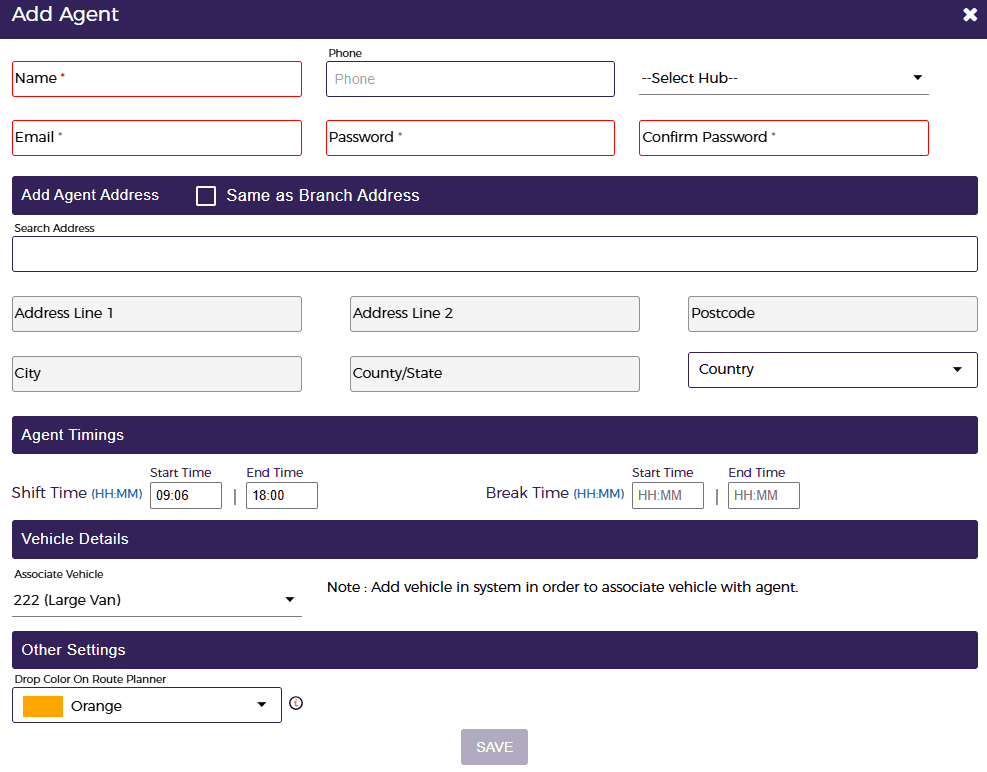
- Enter the driver’s name.
- Enter the Phone No.
- Select the HUB if one has been created. This field is optional.
- Enter a unique Email address and Password for the driver app login.
Note
The email should not be already registered in InstaDispatch.
- Add Agent Address. This can be the same as the Branch Address or a different start address.
Note
The Driver’s address can be used to optimize the route, so ensure it is entered accurately
- Set Agent Timings such as Shift Time and Break Time.
- Review Vehicle Details if you want to assign a vehicle during setup.
- Choose the Color if you want route drops to display in a specific color on the route planner on the map. The default color is orange. This helps easily identify which drops are assigned to each driver based on the color shown on the map.
- Click Save to create the driver.
Associate the driver with a vehicle
A vehicle can be associated while creating the driver or later by editing the driver record.
- Open the driver record or continue in the Add Driver form.
- Select the Vehicle Category.
- In the Plate No. field, choose the vehicle from the dropdown list.
- Only vehicles that are not already associated with another driver in the selected category will appear.
- If no vehicle is available, either create one from the Vehicle page or tick Auto Create Vehicle to generate one automatically.
- Save the driver record after the vehicle is assigned.
Reset driver password
- Go to the Agents List screen.
- Locate the driver in the Action column.
- Click the password reset icon.
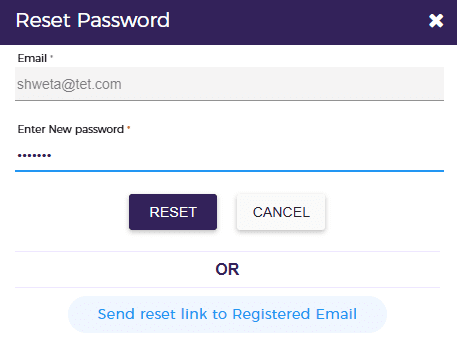
- In the Reset Password window, either enter a new password and click Reset, or send the reset link to the registered email address.
- This option allows the dispatcher to set a new password directly or send a secure reset link to the driver.
Delete a driver
- Go to the Agents List screen.
- Locate the driver you want to remove.
- Click the Delete option in the Action column.
- Confirm the deletion to permanently remove the driver from the system.

